|
Subject: Specification of the DPC Gamma Counter Database Author: Dennis Allard, allard@oceanpark.com Date: April 30, 1999
1. Introduction This report provides a specification of the Gamma Counter Database as currently implemented. The system replaces an older system, PTECH, which was implemented in 1988, over ten years ago. PTECH operates in DOS connected via a serial line to an Iso-Data Gamma Counter. It is written in Turbo Pascal and makes use of a COM1 driver written in assembly language using BIOS interrupt 16H and a graphics library for a Hercules graphics card. There are about 3000 lines of Pascal source code and 100 lines of assembly code. The Gamma Counter Database completely replaces the old PTECH system and is implemented in Microsoft Access 97 on Windows 95. The new system duplicates the overall logic and workflow of the old PTECH system, providing all of the old functionality, some additional functionality, and improved look and feel. In addition, the new software operates with a Wallac 1470 WIZARD Gamma Counter.
2. Overview of system The system has five basic functions:
Each of the above functions is specified in more detail in the following sections. 2.1 Database. The system uses an Access database to store products and iodinations. The data model is quite simple, as pictured below.
The ID fields in bold are surrogate primary keys, used as internal unique identifiers for their respective tables. From the users point of view, a product is identified by the productname field. A text string similar to the product name is used to label each iodination lot. I have formalized this with an iodination_lot field. There are many iodination entries per product. There is effectively no limit to the number of iodinations kept in the database. However, if there is no reason to keep iodinations beyond a certain date, old iodination data should be deleted or offloaded to an archival database. There are between 10 and 500 fractions per iodination in tbCount. The iodination table contains all inputs necessary to compute the two derived values:
I have included some default values where they seem to be useful: the default uL is always 10. The default ML per fraction is 2 but other small integer values are also used. A concept of user has been explicitly modeled. The user notion could be extended to include per-user passwords and per-user levels of data access. The database does not need to be multi-user for database updates since it has been stipulated that the system will only interface to a single gamma counter. Multiple users can view data simultaneously, however, if the Access database is installed on a shared file system.
2.2 Count Reader The counts are processed by a new driver, dubbed 'count reader', which reads data coming in over a serial communications port (COM1 for the Iso-Data machine, COM2 for the Wallac machine.). The count reader is implemented with MSCOMM32.OCX which ships with Visual Basic.
2.3 Graphical display of iodinations The graphical display, zooming, and printing functions would require substantial programming to reimplement from scratch. Fortunately, third party 'controls' are available which implement graphing via fast implementations and which can be fit into an Access of VB program like a piece into a puzzle. We chose Olectra Chart for our graph control. Olectra Chart provides an API (Application Program Interface) to programs so that whatever you can do manually can be done under program control. The features include populating the chart with data, changing the scale of the axes, zooming, panning, changing colors, etc. Section 2.5 provides details as to the specific forms which exist in the system.
2.4 Reports Reports show any combination of the following information:
Section 2.5 provides details as to the specific reports implemented in the system.
2.5 User Interface and Workflow The workflow is implemented by an object centered UI (user interface) in which one is at all times viewing an object (or set of objects) and has the ability to perform operations on that object (or set of objects). The UI is organized around the forms named fmLogin, fmProduct, fmIodination, fmDataCapture, and fmGraph. Associated with each form are several auxiliary forms for creating, modifying, and deleting data or making menu selections. The principal forms and reports are displayed below, with an explanation of functionality.
From fmLogin
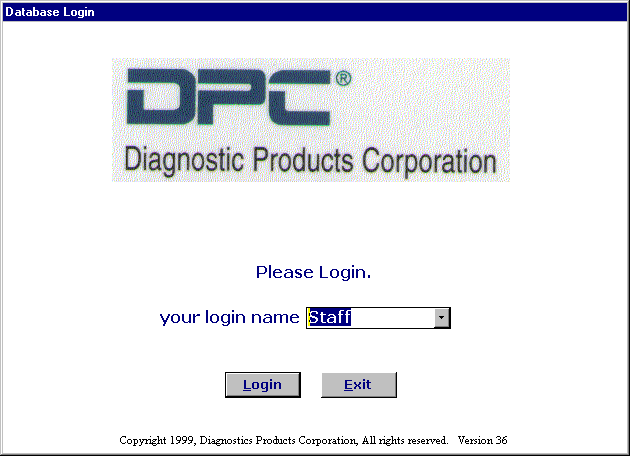
The Database Login form, fmLogin, requires the user to select a user name from the pull down menu. No password is required. The user name is used during functionning of the system at various points to associate the current user with data records. Pressing Login indicates that the selected user is the current user and brings up the product form, fmProduct. Pressing Exit causes the system to shut down and exit Access.
Form fmProduct
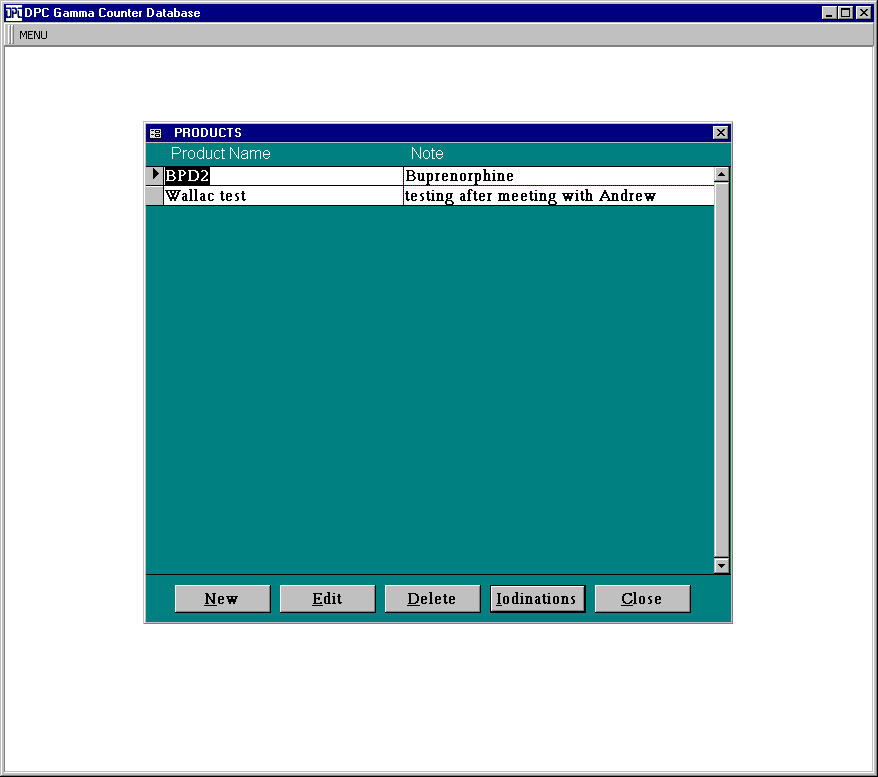
The fmProduct form displays all products in a vertically scrolling window area. The user may not directly modify any data showing in the form. To create a new product record, New is pressed and a form appears to accept the product name and note. Creating a new product verifies the product name is unique. To modify the name or note of a product, Edit is pressed and a form appears which permits modifying that data. To delete a product, Delete is pressed. The system does not permit deleting a product that has any iodinations. Selecting a product and pressing Iodinations brings up fmIodination for the highlighted product.
Form fmIodination
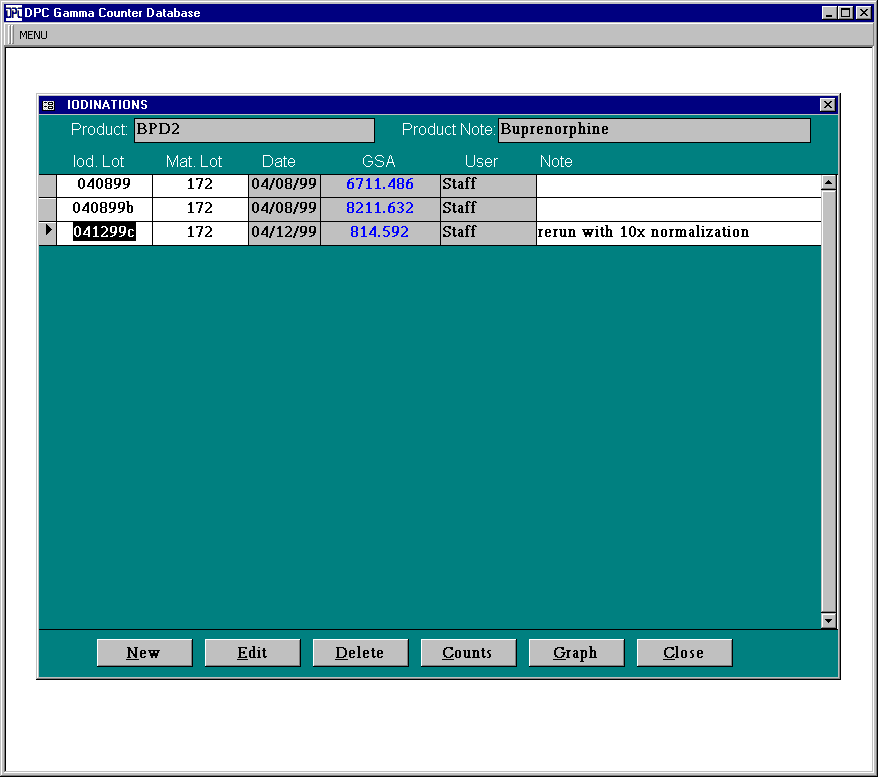
The form fmIodination lists all iodinations for a given product the scrollable window area. Each line in the scrollable area displays data about an iodination. When a new iodination is added, all fields are blank. The computed fields MCI Recovered and GSA do not appear unless all inputs necessary for their computation have been entered (see fmGraph, below). The logic for the New, Edit, and Delete buttons is analogous to fmProduct. In particular, an Iodination cannot be deleted from the database if it has any counts (see fmDataCapture, below). Pressing Counts brings up the fmDataCapture form. Pressing the Graph button brings up the fmGraph form. Pressing Close returns to the fmProduct form.
Form fmDataCapture
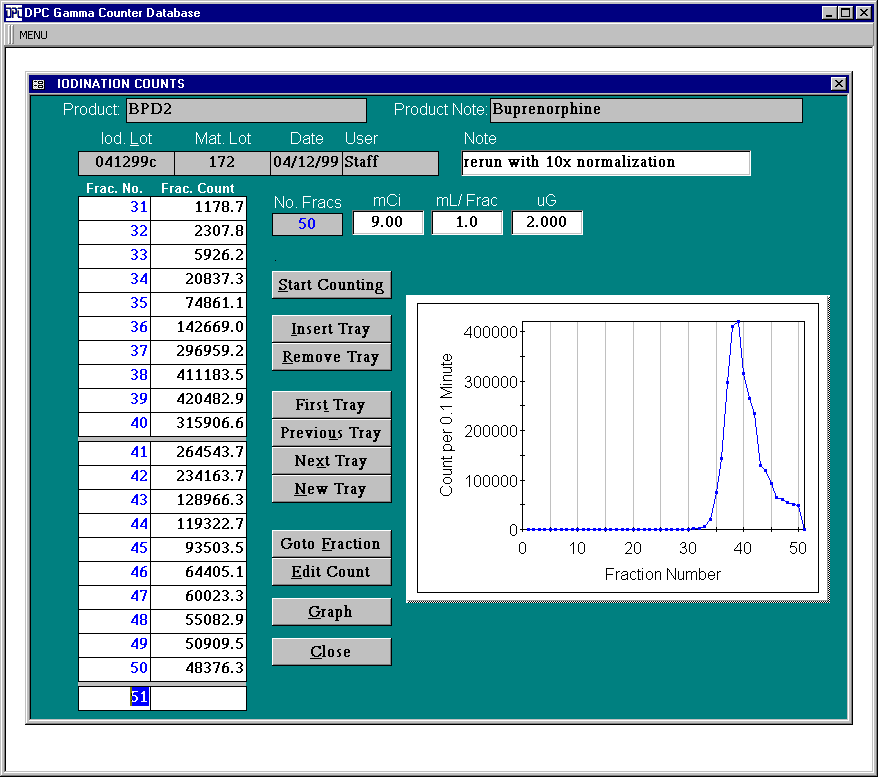
fmDataCapture displays counts for an iodination and is used to edit counts and to insert or remove trays, where a tray is a set of ten counts. To begin accepting counts from the Serial input line, Start Counting is pressed, whence the button label changes to 'Stop Counting'. While counting, only 'Stop Counting' is available -- all other buttons are disabled When the COUNT button on the physical gamma counter is pressed, the next ten counts are delivered to the Gamma Counter Database. Counts are shown in blocks of ten only (a 'tray'). fmDataCapture is dynamically updated to display counts as they arrive both numerically and graphically. Inputs may be entered in the fields labelled mCi, mL/Frac, and uG. These fields are enabled at all times. Pressing Close returns to the fmIodination form. Pressing Graph brings up fmGraph for the iodination displayed by fmDataCapture. Form fmGraph
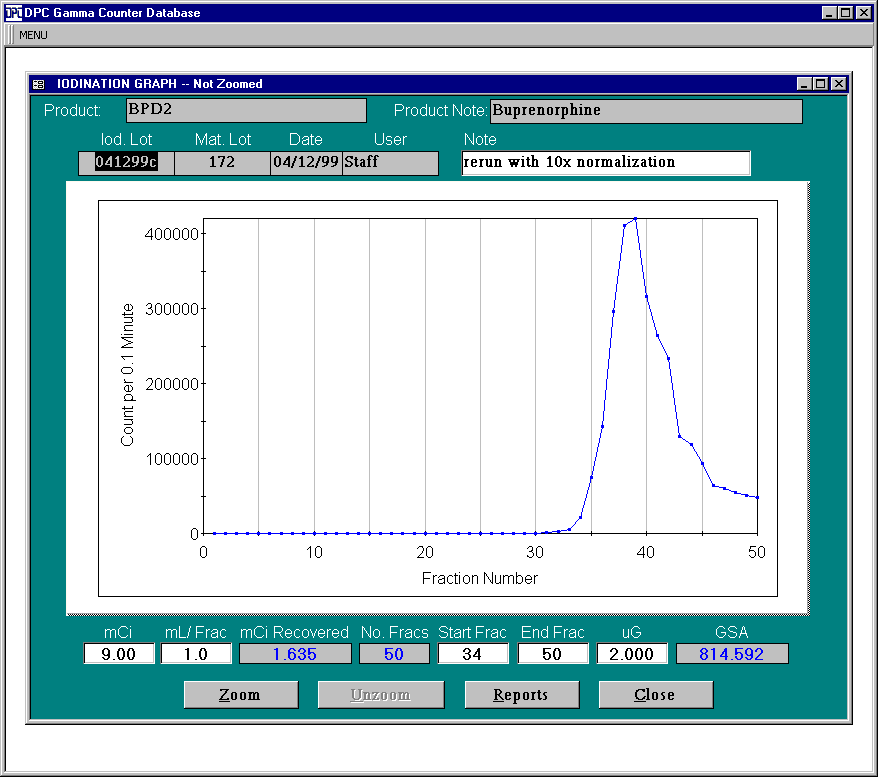
fmGraph displays the graph of an iodination, permits zooming, and provides fields for entering all inputs associated with an iodination: mCi, mL/Frac, Start Frac, End Frac, and uG. Once counts for an iodination exist and all five inputs are entered, the two outputs of an iodination are computed and displayed: mCi Recoverd and GSA (Gravimetric Specific Activity). The mCi Recovered output depends on the inputs mCi and mL/Frac. The GSA output depends on the inputs Start Frac, End Frac, and uG. Output fields are blank until all inputs are entered. Pressing Zoom prompts the user for a lower and upper count and redraws the graph restricted to points between the lower and upper counts entered. Unzoom is enabled only if the graph is zoomed. Pressing Unzoom unzooms the graph to a display of all counts. Pressing Reports brings up fmReportMenu to permit choosing reports. Pressing Close returns to fm
Form fmReportMenu
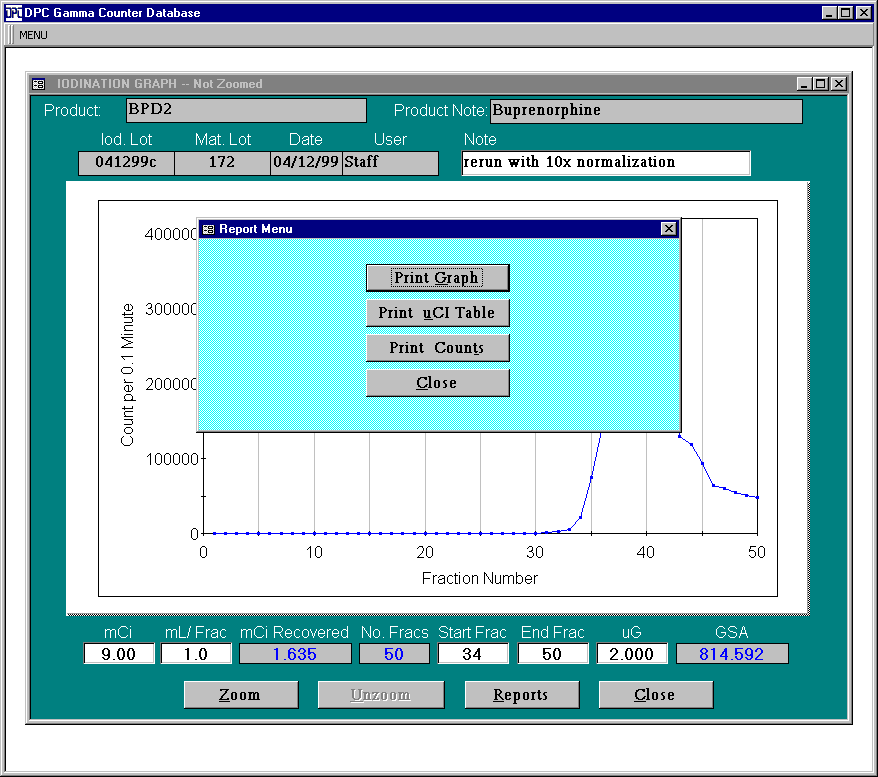
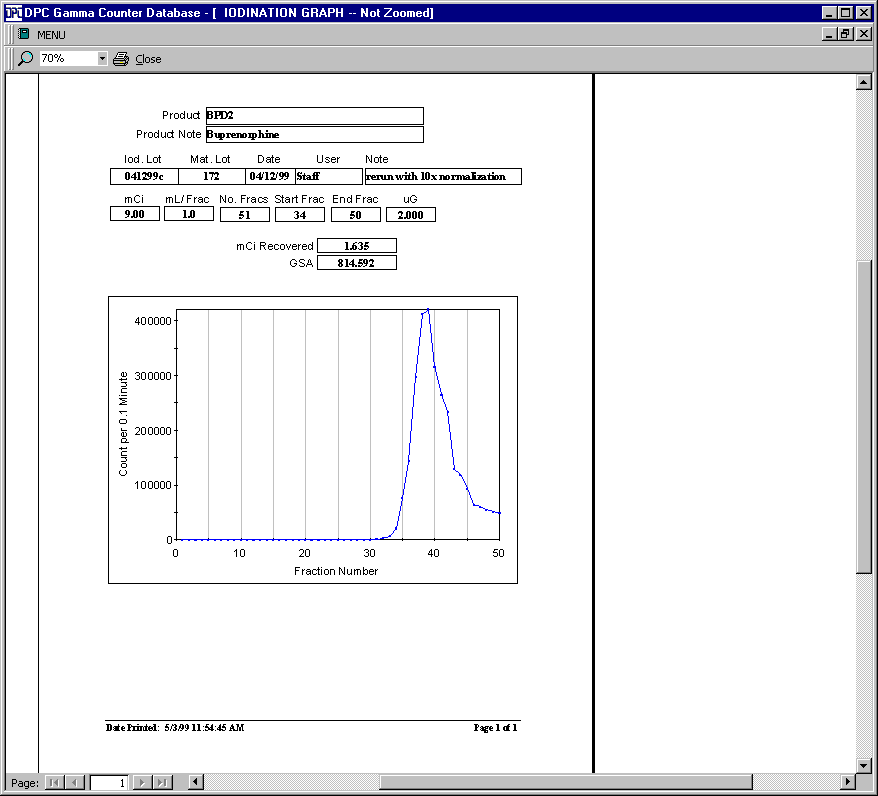
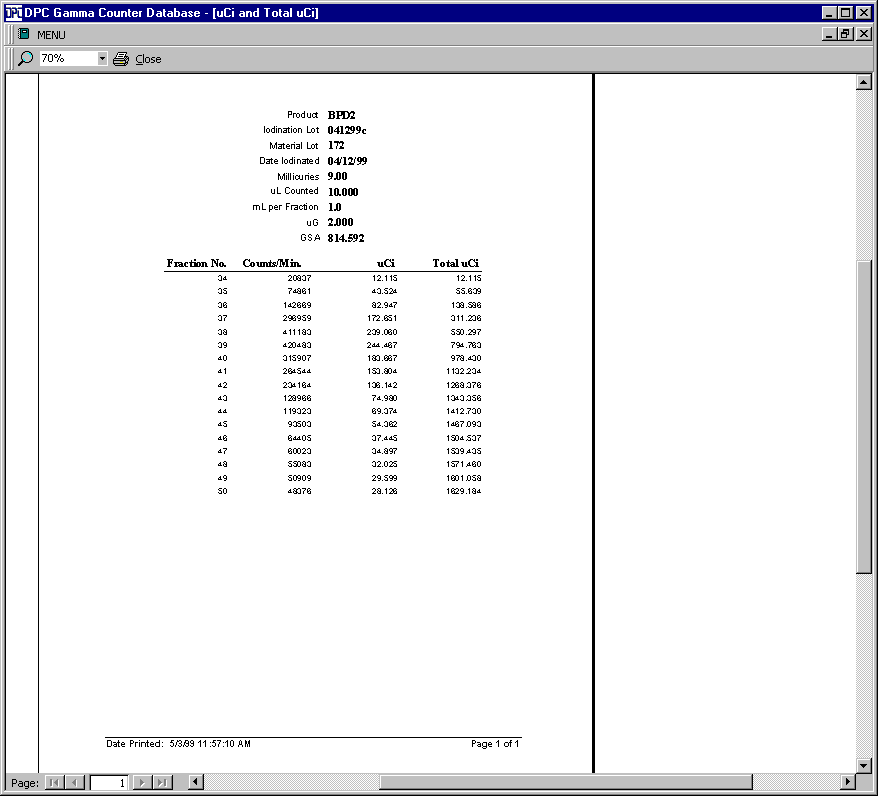
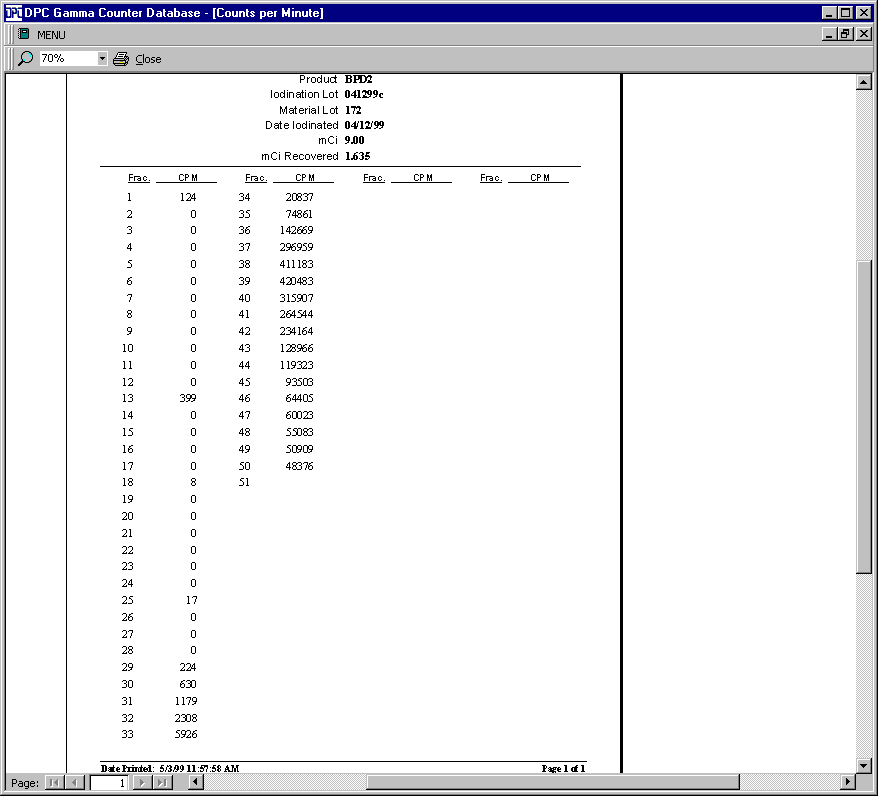
fmReportMenu displays three choices of reports to be printed. Pressing a choice brings up the report for the displayed Iodination in Print Preview mode. Each of the three report print previews is shown below.
Report Graph
Report uCI
Report Counts
3. Tasks and time estimates The following table shows both the estimated and actual times for each task undertaken to complete the project. Prior to this set of tasks, a two week requirements analysis had been performed. That two weeks is not included or detailed here. Some tasks were performed under the estimate. One task took twice as long as estimated due to bugs in Microsoft Access in how screen refreshing is performed. Three days were spent attempting to solve the problem; finally a work around was implemented in two days.
|
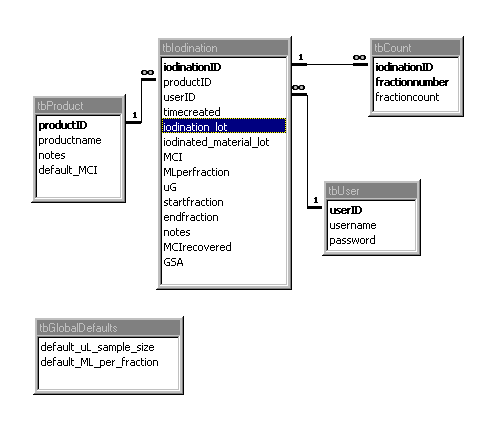 The main tables are tbProduct, tbIodination and tbCount, used to store product information, data about iodinations, and gamma counts for all fractions in an iodination, respectively.